
Population Strategies
Quintessence functions return results following Excel’s population behavior, which may operate in one of two modes:
- Dynamic Array (referred to in Quintessence as SPILL population)
- Pre–Dynamic Array (referred to in Quintessence as Quintessence population)
The difference between these modes determines whether Excel reserves the result range or allows users to manually enter values inside it.
Example Scenario
Suppose the following CreateMatrix() call is entered in Excel cell A1:
Qx.CreateMatrix(5, 5, "identity")We then apply a Transform() to replace any 0 values with Null():
Qx.Transform(Qx.CreateMatrix(5, 5, "identity"), "k=series(1, columns):if(Ck=0, Null(), Ck)")The resulting behavior depends on whether Excel operates in Dynamic Array mode or Pre–Dynamic Array mode.
Dynamic Array Population
In Dynamic Array mode, functions spill automatically into adjacent cells.
Formula:
=Qx.Transform(Qx.CreateMatrix(5, 5, "identity"), "k=series(1, columns):if(Ck=0, Null(), Ck)")Behavior:
- Excel reserves range
A1:E5as a spill range. - Users cannot manually edit any cell inside the spill range (e.g., cell
C4). - Any attempt to write inside the spill range produces a #SPILL! error or is blocked.
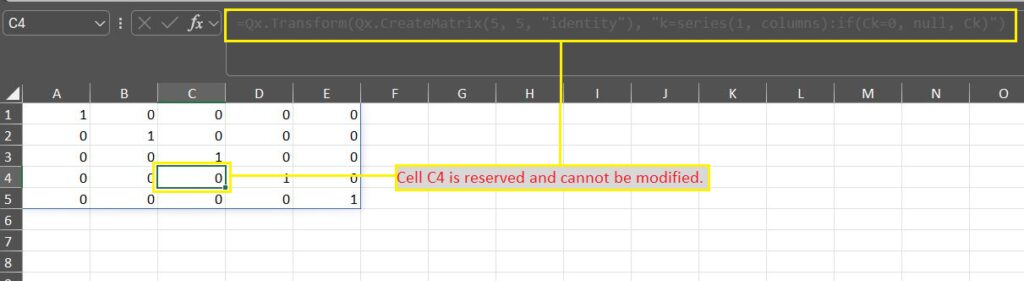
This is Excel’s modern default behavior.
Pre–Dynamic Array Population (Quintessence Population)
In Pre-Dynamic Array mode, Excel does not spill results automatically. Quintessence uses this mode when formulas are prefixed with:
=@Formula:
=@Qx.Transform(Qx.CreateMatrix(5, 5, "identity"), "k=series(1, columns):if(Ck=0, Null(), Ck)")
Behavior:
- Excel does not reserve range
A1:E5. - Users can manually enter values inside result cells (e.g.,
C4). - This allows interactive editing without blocking the populated range.
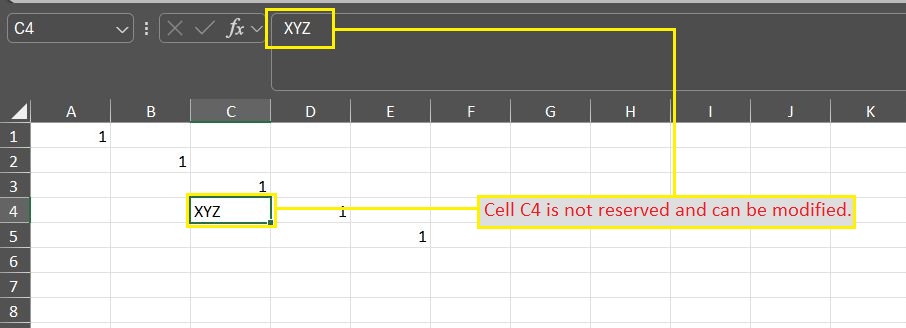
This is the traditional Excel behavior before Dynamic Arrays were introduced.
Preserving Manual Edits with Sparse()
When using Pre-Dynamic Array mode:
- If users manually enter values into cells that contain
Null(). - The next recalculation may overwrite those manually entered values.
To prevent this, wrap the initial call with Sparse():
=@Qx.Sparse(Qx.Transform(...))Purpose of Sparse():
- Ensures manually entered values in previously-null cells are retained.
- Prevents unintended overwriting during recalculation.